
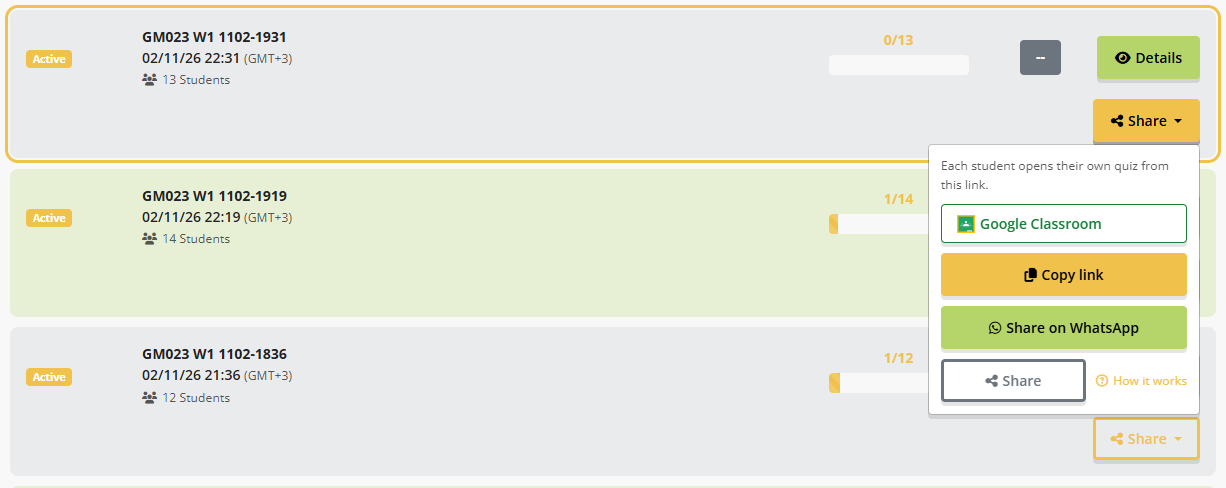
Post your quizzes in Google Classroom with one button. Each student opens their own quiz from the assignment, on the website or in the app.
Share a quiz
- Create a quiz for your group as usual. You come back to the group page with the new quiz highlighted.
- Press Share next to the quiz, then Google Classroom. The same buttons are at the top of the quiz page.
- Google opens its own window: choose your class, keep Assignment, and set the due date and points if you like.
- Press Assign. Your students see the assignment with the A* Quiz link.
What your students see
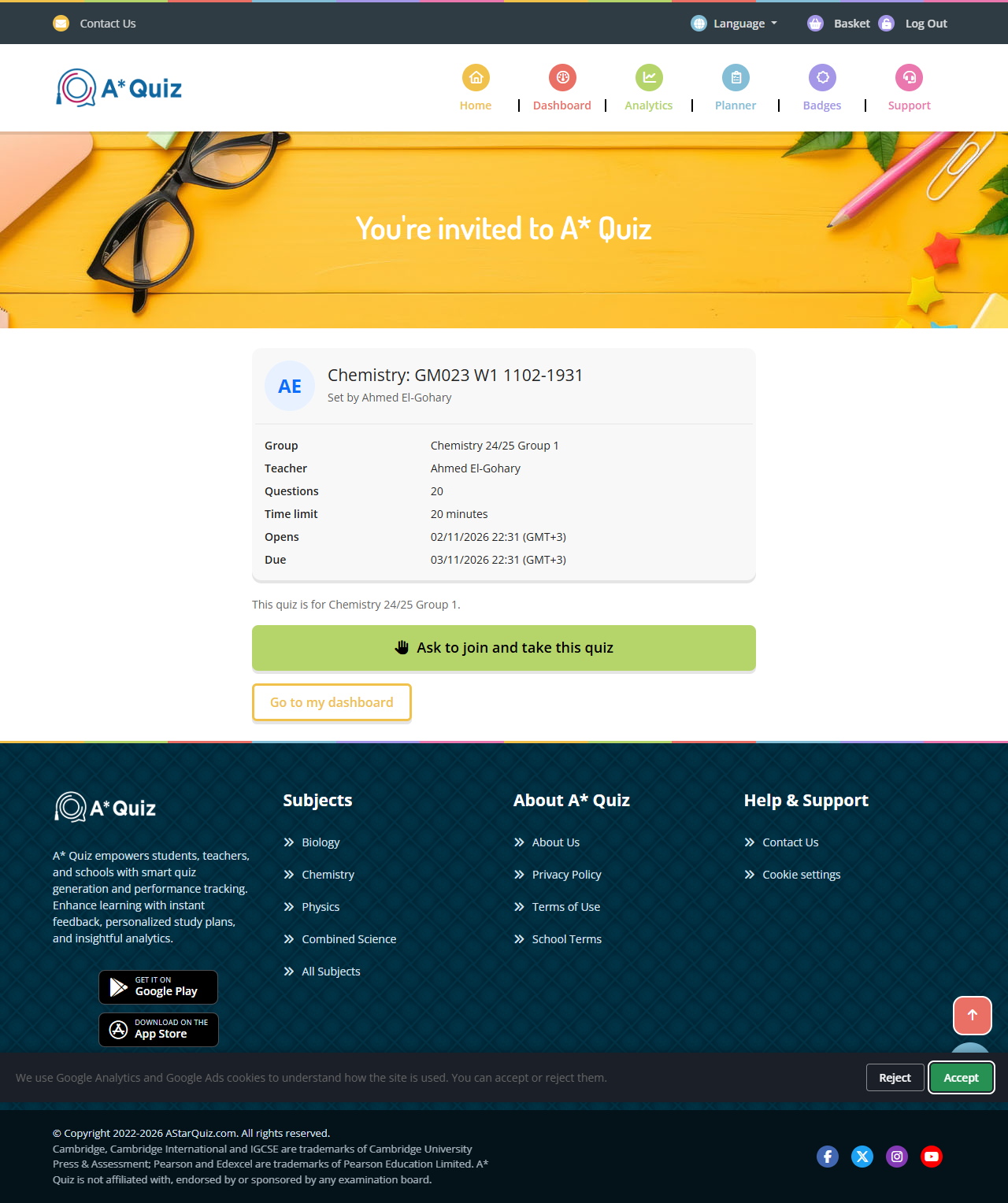
- A student chosen for the quiz goes straight to their own quiz, or to their result once they have finished it.
- A student who was not chosen for the quiz can ask to take it. You approve or decline on the quiz page; approving gives them the quiz (and adds them to the group when needed).
- A student without an A* Quiz account creates one from the link; their request is sent to you automatically.
Invite your class to your group
On the group page, press Invite link, then Google Classroom: the link is posted as class material, and your students join your group with it.
Good to know
- Marks do not go back to Google Classroom. You see your students' results in A* Quiz.
- Students need a free A* Quiz account. They can create it from the link.
- You need to be signed in to Google with an account that uses Classroom (a school account or a personal Gmail).
- You can switch a quiz's link off on the quiz page at any time.